
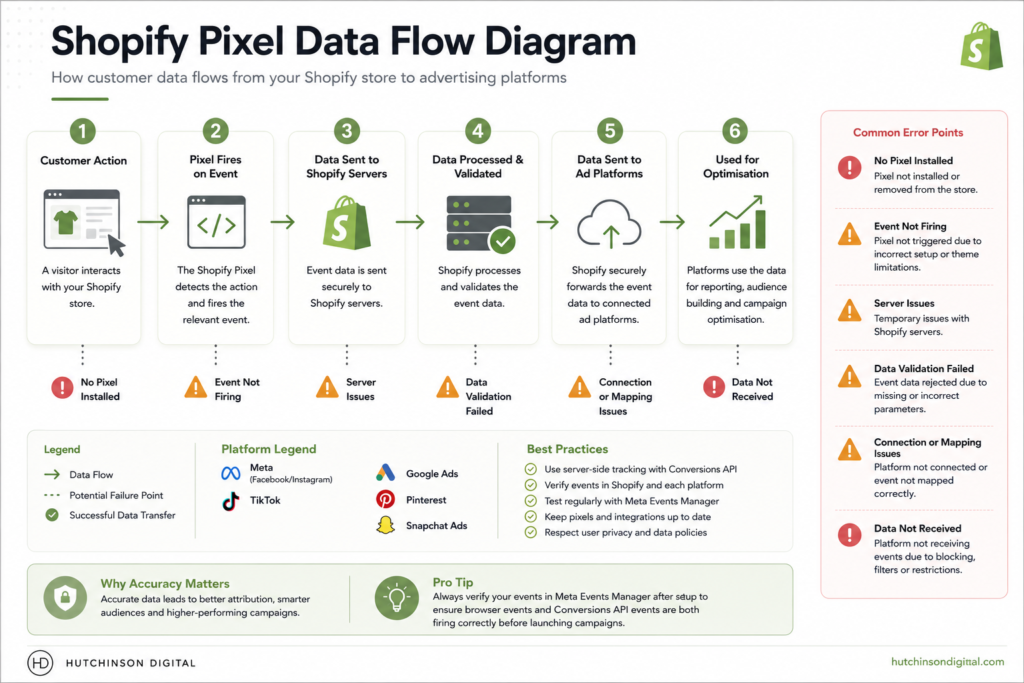
Shopify Pixel troubleshooting flow diagram showing how customer events move from Shopify to Meta Ads and common tracking errors.
Imagine running a new campaign, only to realise your Shopify Pixel troubleshooting needs attention: purchases aren’t tracked, analytics are unreliable, and Meta Ads are burning budget with mismatched data. Tracking errors drain revenue and undermine every marketing decision. Most Shopify store owners waste days—or weeks—just trying to diagnose basic Pixel data problems.
This Shopify Pixel troubleshooting guide delivers step-by-step, proven methods to identify, resolve, and prevent the tracking errors causing chaos in your store’s analytics. Regain full data control, fix what’s broken, and future-proof your conversion tracking—before it impacts another campaign.
By the end of this guide, you’ll be able to pinpoint the exact source of Shopify Pixel tracking problems and implement the most effective solutions, benchmarked against Shopify and Meta’s own recommendations.
Understanding Shopify Pixel Tracking (What It Does & Where It Breaks)
What Is the Shopify Pixel?
Shopify Pixel tracking is the mechanism that collects and transmits customer event data from your Shopify store to platforms like Facebook (Meta), Google Ads, and analytics tools. The Pixel’s job is to detect actions—viewing a product, adding to cart, initiating checkout, and completing a purchase—and relay those events for ad targeting and performance measurement.
Shopify Pixels can be installed natively, via app integrations, or through intermediate platforms like Google Tag Manager (GTM). Each method influences where errors may emerge and how you should troubleshoot.
How Pixel Tracking Powers Your Marketing
Accurate Pixel event tracking is critical for:
- Correctly attributing ad spend to revenue, enabling profitable scaling.
- Powering remarketing campaigns with precise audiences.
- Feeding machine learning for campaign optimisation.
- Diagnosing funnel leaks or unexpected conversion drops.
When tracking is incomplete, out of sync, or duplicated, decision-making suffers. A misfiring Pixel can lead to Facebook “learning limited” campaigns, mismatched or missing Purchase events, and wasted budget targeting cold rather than warm audiences.
Where Can Pixel Tracking Fail? (Common Data Path Example)
Pixel tracking errors cluster around a few weak points:
- Theme or Code Changes: Updates may accidentally remove or duplicate Pixel snippets.
- App and Script Conflicts: Competing apps, especially for analytics, upsells, or cookies, can inject extra Pixel events leading to duplication or suppression.
- Checkout and Payment Apps: Unusual checkout flows or payment methods may disrupt standard event firing.
- Browser Privacy or iOS Restrictions: iOS14+ users and modern browsers block or limit tracking, causing visible gaps unless server-side Pixel/CAPI is configured.
Knowing where your data might fall through the cracks is the first step to diagnosing and fixing Shopify Pixel errors before they drain your budget or skew your reporting.
Shopify Pixel Troubleshooting Framework (Identify, Diagnose & Fix)
Recurring Pixel errors waste hours unless you take a process-driven approach. The following Shopify Pixel troubleshooting framework provides a clear, actionable roadmap regardless of your store size or the complexity of your stack.
How to Use This Troubleshooting Framework
Begin with the actual symptom you observe—such as a missing Purchase event, duplicate events, or a tracking mismatch with Meta Ads. The framework below links every common problem to likely causes and proven solutions. Don’t jump to fixes before accurately diagnosing the root cause; this reduces wasted effort and prevents introducing new errors.
Keep this checklist to hand and work linearly through the flow. Each recommendation pinpoints what to check, how to test it, and what the next step should be if the problem persists.
Decision Tree: Common Error Paths
The framework covers the most frequent routes:
- Pixel not firing at all
- Step 1: Check Shopify settings and theme placement.
- Step 2: Use Pixel Helper to see if events trigger.
- Step 3: Inspect for conflicting apps or scripts.
- Duplicate events registered
- Step 1: Check for multiple Pixel installations (native + app + GTM).
- Step 2: Review event firing in test purchase flow.
- Purchase or checkout events missing
- Step 1: Test using admin “Preview Store” and real checkout.
- Step 2: Verify payment integrations and custom scripts.
Each core symptom in the flow links directly to the correct troubleshooting section below.
Store owners often save days—or more—by applying this framework instead of chasing unsupported fixes from forums or generalised help articles.
Diagnosing Shopify Pixel Tracking Errors (Find Out What’s Broken)
Identifying Shopify Pixel errors relies on tools and a disciplined approach—not guesswork. This section covers proven ways to see if your Pixel is firing, what’s malfunctioning, and where in the process data is breaking.
Using Facebook Pixel Helper on Shopify
Start with the Facebook Pixel Helper Chrome extension (or use Facebook’s Events Manager for advanced checks). When you visit your store or checkout, Pixel Helper displays every event—Product View, Add to Cart, Initiate Checkout, Purchase—that fires on that page.
If essential events are missing or errors appear, take note:
- No Pixel detected: Installation failed or script conflict.
- Multiple Purchase events: Likely duplicate Pixel scripts.
- Red “Event not fired” signals: Broken event code or improper placement.
Pixel Helper also provides raw error codes. Cross-reference these with the table below.
Reading Shopify Admin Event Reports
Shopify Admin > Settings > Customer Events lists all Pixels and tracks recent event activity. Disagreement between this panel and Facebook’s Events Manager helps confirm where data drops occur.
- Recent Purchases missing from Admin: Pixel isn’t configured or is blocked before reaching Facebook.
- Events in Admin but missing from Facebook: Connectivity issue, browser privacy restriction, or CAPI setup error.
Testing both via a live checkout and with a second browser (ideally incognito) can reveal user-specific blockers or app conflicts.
Common Error Messages & What They Mean
Common errors and their triggers are summarised below.
| Error Message (Tool) | Root Cause | Priority Fix |
|---|---|---|
| “No Pixel Found” (Pixel Helper) | Pixel code missing | Verify Pixel installed via Shopify Admin |
| “Duplicate Purchase Event” | Multiple triggering scripts | Remove duplicate Pixel or app scripts |
| “Event Not Received” (Events Mgr.) | Tracking blocked or slow | Test CAPI/server-side; check privacy kits/apps |
| “Invalid Event Parameters” | Theme or custom script issues | Review theme edits; check for event syntax errors |
- See Facebook’s Business Help Center and Shopify’s Help Center for background on event error codes.
The combination of Pixel Helper, Shopify event logs, and Facebook Events Manager provides a full map of which events are broken, duplicated, or missing—laying the groundwork for precise troubleshooting.
The 7 Most Common Shopify Pixel Errors (& How to Fix Each, Step-by-Step)
Solving Shopify Pixel issues requires methodically pairing the observed error with its root cause. Below are the seven tracking errors store owners face most frequently, with actionable steps (and screenshots) to solve each.
Pixel Not Firing at All
Short answer:
If your Shopify Pixel is not firing, confirm that the Pixel is enabled in Admin and not blocked by theme or privacy scripts.
Step-by-step fix:
- Go to Shopify Admin > Settings > Customer Events. Ensure your Pixel appears and is marked “Active.”
- Check your store frontend with Facebook Pixel Helper. No events detected means installation failed or is suppressed by the theme.
- If using a custom theme: Switch to Shopify’s default (Dawn or similar) and re-test. This isolates theme problems.
- Disable recently added analytics, upsell, or cookie apps; re-test with Pixel Helper.
- Check browser ad blockers—test in a fresh incognito session to rule out extensions.
Checklist:
- Pixel active in Shopify Admin
- No conflicting apps/scripts
- Theme supports customer events
Mistake to avoid:
Editing theme.liquid directly for Pixel scripts—always use Shopify’s Customer Events system.
Duplicate Pixel Events
Short answer:
Duplicate events arise from multiple Pixels firing (native, app-based, or GTM together).
Step-by-step fix:
- Review Shopify Admin > Customer Events for multiple Pixel integrations.
- Audit your installed apps for analytics, remarketing, or Pixel scripts. Remove or disable any with overlapping tracking.
- If using GTM, check for Pixel tags active on the same pages as Shopify’s native Pixel.
- Run a test purchase. Check Pixel Helper: Only one “Purchase” event (and each key event) should register per step.
Checklist:
- Single active Pixel instance per event
- GTM and app-based events disabled if using native integration
Case study:
A jewellery merchant integrated Facebook Pixel via both Shopify and a third-party retargeting app. Disabling the app’s Pixel script resolved duplicate Purchases and aligned ROAS calculations within hours.
Purchase Event Not Registering
Short answer:
Untracked purchases are typically due to checkout app conflicts or payment integration issues.
Step-by-step fix:
- Run a real checkout. Confirm if the Purchase event fires in both Pixel Helper and Events Manager.
- Check which payment app or method is used. Some apps (e.g., offsite Buy Now Pay Later, custom checkouts) interrupt native Pixel flows.
- Re-enable native Shopify checkout and re-test.
- Review Shopify Help Center for any app-specific compatibility warnings.
Checklist:
- Standard Shopify checkout used (no major modifications)
- All checkout-upsell or payment apps tested and reviewed for compatibility
- Purchases verified in both Facebook and Shopify logs
Add-to-Cart Event Not Tracked
Short answer:
Missing Add-to-Cart tracking usually stems from theme edits, missing event tags, or dynamic cart apps.
Step-by-step fix:
- Open a product page, add to cart, and check for the AddToCart event in Pixel Helper.
- Inspect theme files for missing “Add to Cart” buttons linked to data-event attributes.
- Test with default Shopify theme (Dawn); if events appear, your theme or cart drawer needs proper event triggers.
- Update/patch any dynamic cart apps per the developer’s instructions.
Broken Checkout Tracking
Short answer:
Broken checkout tracking results when checkout scripts, upsell apps, or privacy consent tools suppress events.
Step-by-step fix:
- Verify which checkout customisation or app is active.
- Temporarily disable new scripts or upsell apps.
- Test a full checkout from cart to thank-you page. Use Pixel Helper and Events Manager to confirm all core events.
- Consult app documentation for event compatibility (most will state whether events are re-fired or suppressed).
Facebook Ads Data Mismatch
Short answer:
If Shopify sales don’t match Facebook-reported conversions, the cause is usually missing/delayed Pixel or events blocked by browser privacy.
Step-by-step fix:
- Compare Shopify Analytics > Orders/Conversion with Facebook Events Manager for at least the past 7 days.
- Verify no day has zero Purchase events on Facebook and sales on Shopify.
- Enable CAPI (server-side tracking) for improved event reliability—especially with iOS traffic.
- Allow at least 24-48 hours for delayed events to sync; some lag is normal.
Checklist:
- Event counts roughly match (allowing for privacy gaps)
- CAPI activated if privacy loss is significant
Pixel Helper Shows Errors
Short answer:
If Pixel Helper flags errors, look specifically at the error message for direct clues.
Step-by-step fix:
- Note the error—“Invalid Event Parameters” means the expected data isn’t being sent.
- If using theme customisations, validate snippet placement and data attributes.
- Update theme or revert recent script changes.
- Refer to error/message table in Diagnosing section for targeted troubleshooting.
Advanced Pixel Issues: App Conflicts, GTM & Server-Side Tracking
Complex Shopify Pixel errors often involve multiple stacked integrations—apps, GTM, server-side tracking—plus new browser privacy blocks. Handling these doesn’t require coding, but does demand careful system review.
App & Script Conflicts: How to Diagnose & Resolve
Conflicting apps and scripts are the top source of “invisible” tracking errors:
- Symptoms: Events double-fire, never fire, or some only fire on certain browsers/devices.
- Diagnosis: List every app with analytics, retargeting, conversion, or upsell functionality in Shopify Admin.
- Resolution:
- Disable all but the official Shopify Pixel.
- Test event streams after each step.
- Check documentation: Only run multiple tracking scripts if you know how to deduplicate events (rarely recommended).
GTM vs. Native Pixel vs. App-based Installations (Comparison Table)
Some brands experiment with multiple install types but struggle with deduplication, diagnostics, and maintenance.
| Method | Pros | Cons | Common Errors | Trouble Level |
|---|---|---|---|---|
| Native Shopify | Easy, auto-updates, support | Limited flexibility | Minimal, easy to fix | Low |
| App-based | Extra features/audiences | Prone to duplication, limited support | Duplicates, event loss | Medium |
| GTM | Advanced control, multi-tag | High misconfig risk, DIY maintenance | Missing/duplicates | High |
| Server-side CAPI | Maximum reliability, privacy | Setup complexity, needs maintenance | Dedup errors, API drops | High |
Export, maintain, and regularly review your configuration to avoid silent errors as you experiment or scale.
Server-side Tracking & Privacy Updates (CAPI, iOS14+)
Since iOS14 and new browser privacy initiatives, client-side Pixels lose up to 50%+ of conversion data from affected users. Shopify now supports CAPI (Conversions API), which relays events server-to-server, bypassing some—but not all—privacy blocks.
- To check if CAPI is working:
In Facebook Events Manager, find both “browser” and “server” events for Purchases. Deduplication errors signal misconfiguration.
- Common issue:
Running both browser and server (CAPI) tracking without deduplication triggers double reporting. Use Facebook’s recommended event_id matching.
Preventing Future Tracking Issues (Proactive Maintenance & Best Practices)
A reactive approach means lost data and missed conversions. Proactive Shopify Pixel troubleshooting comes down to documentation, monthly checks, and staying ahead of evolving platform changes.
Regular Diagnostic Checklist: What to Review Each Month
- Test a complete storefront funnel in two browsers (with and without privacy extensions).
- Run Facebook Pixel Helper during each funnel test; compare events to Shopify Admin logs.
- Review Shopify Admin > Settings > Customer Events for changes or inactive Pixels.
- Audit new app installs or theme updates for tracking script changes.
- Backup current tracking configuration before major promotions or site edits.
Monitoring Updates: Where to Watch for Changes (Shopify, Facebook, Google)
- Subscribe to the Shopify Changelog.
- Monitor the Meta for Developers updates.
- Join private Shopify and Facebook Ads discussion groups for urgent issue reports and app compatibility notes.
When to Escalate: DIY vs. Expert Help
Fixes are typically DIY unless:
- Checkout code or tracking scripts have been customised in ways you’re unsure about.
- Server-side (CAPI) or GTM errors persist after following manufacturer documentation.
- Data losses exceed 10-20% of expected conversions for multiple days.
| Task | DIY | Expert |
|---|---|---|
| Test event firing with Pixel Helper/Admin | ✓ | |
| Remove duplicate Pixel scripts/apps | ✓ | |
| Revert theme to default for diagnostics | ✓ | |
| Troubleshoot deeply modified checkout/theme | ✓ | |
| Configure or debug dedicated CAPI/Server | ✓ | |
| Integrate multiple analytics with dedup | ✓ |
Up-to-date troubleshooting resources are always available from the Shopify Help Center.
Conclusion
Accurate Shopify tracking isn’t a set-and-forget task. Review your setup regularly, test your events after every theme or app update, and keep your Meta Pixel and Conversions API working together to maintain the most accurate data possible. Small issues can quickly impact your reporting, attribution and campaign performance, so taking a proactive approach will help you make better marketing decisions with confidence.
If you’ve followed every step in this guide and you’re still seeing missing conversions, inconsistent reporting or attribution issues, it may be time for a second set of eyes.
At Hutchinson Digital, I help businesses optimise Shopify tracking, Meta advertising, SEO and marketing automation through practical, data-driven solutions. If you’d like me to audit your setup and pinpoint exactly what’s causing the issue, I’d be happy to help.
Already have your tracking sorted? Continue exploring the Hutchinson Digital blog for more practical guides on Shopify, Meta Ads, SEO and AI automation to help you grow your business with confidence.
Thank you for taking the time to read this guide. I hope it has made Shopify Pixel and Conversions API a little easier to understand and given you the confidence to troubleshoot your own tracking setup.
See you in the next guide.
— Melissa
Founder, Hutchinson Digital
Melissa is the founder of Hutchinson Digital, helping businesses grow through SEO, Shopify optimisation, Meta advertising and AI-powered marketing automation. She specialises in building practical digital marketing systems that generate measurable results.