
If you’ve ever looked at your Shopify sales and wondered why Meta Ads is reporting fewer conversions than Shopify, you’re not alone. Setting up Meta Pixel Shopify tracking correctly helps improve conversion accuracy and campaign optimisation.
Browser privacy updates, ad blockers, and changes introduced by Apple’s iOS updates have made accurate tracking far more challenging for ecommerce brands. The result is underreported conversions, poorly optimised campaigns, and advertising budgets being spent without a clear picture of what’s actually working.
The good news is that by combining the Meta Pixel with the Conversions API, you can recover much of that lost data and give Meta the information it needs to optimise your campaigns more effectively.
In this guide you’ll learn:
- What the Meta Pixel and Conversions API actually do
- Why every Shopify store should use both together
- How to install them correctly, step by step
- How to test your tracking before you go live
- Common mistakes to avoid
- Best practices for long-term tracking reliability
What Are the Meta Pixel and Conversions API?
The Meta Pixel is a browser-based tracking script that records visitor activity on your Shopify store. When someone lands on your site, adds a product to their cart, or completes a purchase, the Pixel captures that event and sends it to Meta.
It tracks actions such as:
- Product page views
- Add to Cart events
- Initiate Checkout
- Purchases
- Searches
- Contact form submissions
The Conversions API works differently. Rather than relying on the visitor’s browser, CAPI sends conversion events directly from Shopify’s servers to Meta. Because these events bypass the browser entirely, they aren’t affected by ad blockers, cookie restrictions, or iOS privacy settings.
Using both technologies together creates a hybrid tracking setup that gives Meta a far more complete picture of your customer journey than either solution can provide on its own.
Why Accurate Tracking Matters
Every campaign decision you make – which audiences to target, which creatives to scale, where to increase budget – depends on the quality of your conversion data.
Accurate tracking helps you:
- Measure your true Return on Ad Spend (ROAS)
- Help Meta’s algorithm optimise your campaigns more effectively
- Build better Custom Audiences for retargeting
- Create stronger Lookalike Audiences for prospecting
- Reduce wasted advertising spend
- Understand which campaigns are actually generating revenue
Since Apple’s iOS privacy updates, many Shopify advertisers have seen browser-only tracking miss a significant percentage of conversions. A hybrid Pixel and CAPI setup helps recover much of that lost data.
Meta Pixel vs Conversions API: Key Differences
Meta Pixel
- Runs in the visitor’s browser
- Fast and straightforward to set up
- Can be blocked by ad blockers and browser privacy settings
- Affected by Apple’s iOS tracking restrictions
- Limited access to first-party customer data
Conversions API
- Runs server-side, directly from Shopify to Meta
- Not affected by ad blockers or browser restrictions
- Much less impacted by iOS privacy changes
- Passes first-party customer data for stronger event matching
- Provides more accurate purchase attribution
The best-performing Shopify stores use both together. Neither solution is complete on its own.
Before You Start
Before configuring your tracking, make sure you have the following in place:
- Shopify Admin access
- Meta Business Manager Admin access
- Meta Events Manager access
- Facebook Ad Account connected to your Business Manager
- Facebook & Instagram by Meta app installed from the Shopify App Store
- An updated Privacy Policy that covers data sharing with Meta
- A Cookie Consent Banner enabled on your store
Taking a few minutes to confirm everything is ready before you start makes the setup process much smoother and reduces the chance of errors.
Installing the Meta Pixel on Shopify
The simplest and most reliable installation method is through Shopify’s official Facebook & Instagram by Meta sales channel. This handles both the Pixel and CAPI without requiring any manual code changes.
Step 1 – Install the App
In your Shopify Admin, go to Settings, then Apps & Sales Channels. Search for the Facebook & Instagram by Meta app and install it.
Step 2 – Connect Your Business
Open the app and click Start Setup. Log in to your Meta Business Manager account and select your Business Manager, Facebook Page, Ad Account and Meta Pixel. If you don’t have a Pixel yet, you can create one during this step.
Step 3 – Verify Your Pixel
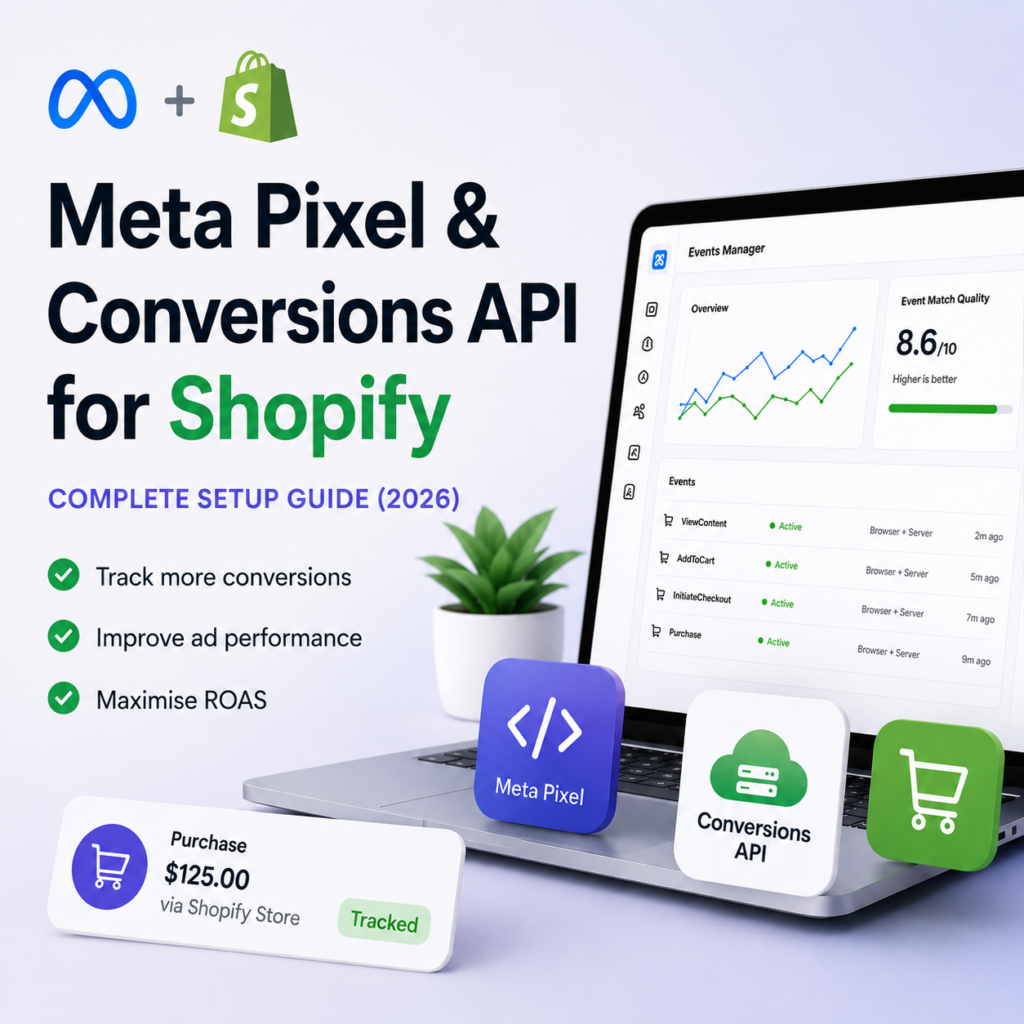
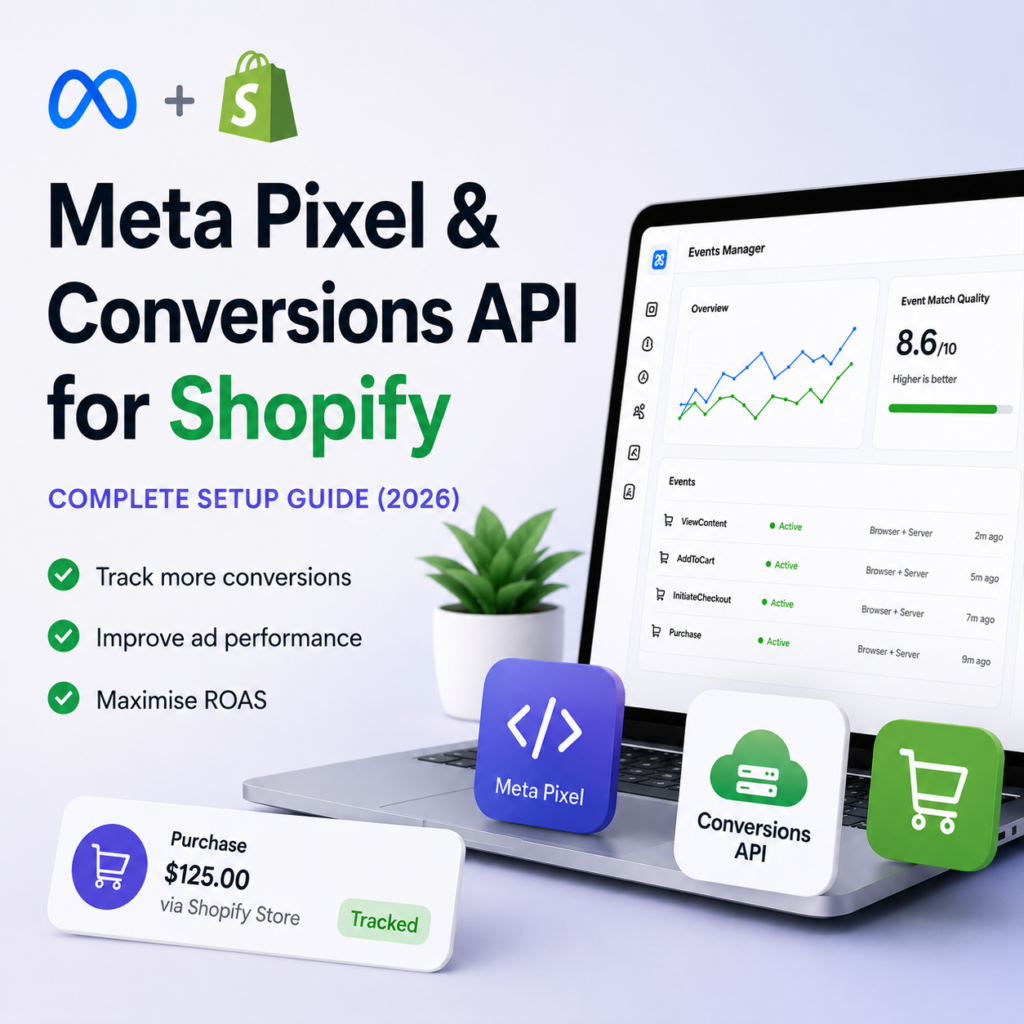
Once connected, open Meta Events Manager and confirm your Pixel is receiving events from your Shopify store. You should see standard events appearing such as ViewContent, AddToCart, InitiateCheckout and Purchase.
If these events are showing up, your Pixel is installed and working correctly.
Setting Up the Conversions API
With your Pixel connected, enabling CAPI is straightforward.
Inside the Facebook & Instagram by Meta app, navigate to Data Sharing Settings and select Maximum. This enables both the Pixel and CAPI simultaneously. Shopify automatically maps your core ecommerce events to the correct Meta event names, so no manual configuration is required.
To confirm CAPI is working, open Meta Events Manager and check that server-side events are appearing alongside your browser-side Pixel events.
Event Match Quality
Once CAPI is live, monitor your Event Match Quality score in Events Manager. This score reflects how accurately Meta can match your conversion events to real Facebook users.
A higher score means better targeting, more reliable reporting, and stronger campaign performance.
To improve your score, make sure your integration is passing as much customer data as possible – particularly email address and phone number. This data is hashed and encrypted before being sent to Meta and is used solely to improve match accuracy.
Testing Your Meta Pixel Shopify Setup
Never assume your tracking is working correctly. Always test it before launching campaigns.
Facebook Pixel Helper
Install the Facebook Pixel Helper Chrome extension and visit your Shopify store. Navigate through the key purchase flow – view a product, add it to cart, proceed to checkout and complete a test purchase. The extension will show you which events are firing and flag any errors.
Meta Events Manager Test Events
In Events Manager, go to the Test Events tab and enter your Shopify store URL. Repeat the purchase flow and watch for events appearing in real time. Both Pixel and CAPI events should appear, with a deduplicated flag confirming that Meta is correctly combining them rather than counting the same conversion twice.
Deduplication
Deduplication is essential. Without it, your conversion numbers will be inflated and your campaigns will optimise against inaccurate data. When both Pixel and CAPI are running, Meta needs to identify which events are duplicates and count them only once.
If you’re seeing the deduplicated flag in Events Manager, your setup is working correctly.
Troubleshooting Common Issues
Pixel not firing
Check that the Facebook & Instagram by Meta app is properly installed and your Pixel is selected within the app settings. Use the Pixel Helper Chrome extension to identify which events are missing or returning errors.
Duplicate events without deduplication
This usually happens when Event IDs aren’t being passed consistently. Make sure your integration is sending matching Event IDs on both the browser and server side so Meta can correctly identify and deduplicate events.
Low Event Match Quality score
Pass more customer data through your CAPI integration. Email address and phone number have the greatest impact on match quality. Both are hashed before being sent to Meta.
No CAPI events appearing in Events Manager
Check your access token in Events Manager under Conversions API settings. Tokens can expire and will need to be regenerated. Also check the Diagnostics tab for any error messages related to your integration.
Legal Compliance and Data Privacy
Before going live with your tracking setup, make sure your store is compliant with privacy regulations relevant to your customers.
Key actions to take:
- Display a Cookie Consent Banner that allows users to manage their tracking preferences
- Update your Privacy Policy to explain that you use the Meta Pixel and Conversions API and what data is collected
- Choose a Data Sharing level (Standard, Enhanced or Maximum) that aligns with your privacy policy and the consent you’ve collected from users
Your Privacy Policy should include language along the following lines:
“We use the Meta Pixel and Conversions API to understand how visitors interact with our store. This information is shared with Meta to help us optimise our advertising. You can manage your cookie preferences at any time using the consent banner on our site.”
Advanced Tracking Strategies
Once your hybrid setup is running reliably, there are several ways to get more value from your tracking data.
Custom Events
Beyond the standard ecommerce events, you can track additional interactions such as video views, quiz completions, or upsell acceptances. These give you richer audience segments for retargeting and allow you to optimise campaigns for specific actions beyond purchase.
First-Party Data
Collecting email addresses and phone numbers through your Shopify store and passing them through CAPI improves your Event Match Quality and makes your audiences more accurate. This is particularly valuable for customers using iOS devices where browser-side tracking is limited.
Prioritise Server-Side for High-Value Events
For checkout and purchase events in particular, server-side tracking should always be your primary data source. These are your most important conversion signals and you cannot afford to lose them to browser restrictions or ad blockers.
What Improved Tracking Delivers
Many ecommerce businesses report improved attribution and more reliable conversion reporting after implementing a hybrid Meta Pixel and Conversions API setup. When Meta has access to more complete and accurate conversion data, campaigns tend to optimise faster, audience targeting becomes more precise, and cost per acquisition often improves as a result.
A well-tracked account gives Meta’s algorithm the data it needs to find your best customers. A poorly tracked account forces it to guess.
Frequently Asked Questions
Do I need both the Meta Pixel and Conversions API?
Yes. Using both together gives you the most complete and reliable tracking setup. The Pixel captures browser-side events and CAPI captures server-side events. Together, they give Meta a full picture of your customer journey that neither can provide alone.
Can I set this up without a developer?
Yes. Shopify’s native Facebook & Instagram by Meta integration handles both the Pixel and CAPI without any coding required. Enable Maximum data sharing in the app settings and the integration takes care of the rest.
How do I know if my tracking is working?
Use the Facebook Pixel Helper Chrome extension and the Test Events feature in Meta Events Manager. You should see both Pixel and CAPI events firing correctly, with a deduplicated flag confirming they’re being combined accurately.
What is Event Match Quality?
It’s a score in Meta Events Manager that reflects how accurately your conversion events are being matched to real Facebook users. A higher score means better targeting, more reliable reporting, and stronger campaign performance.
How does iOS 14 affect my tracking?
Apple’s App Tracking Transparency framework prevents the Pixel from tracking many iPhone users via the browser. CAPI bypasses this by sending events server-side, helping you recover a significant portion of otherwise lost conversion data.
Is this setup GDPR compliant?
It can be, provided you have a working Cookie Consent Banner, an updated Privacy Policy, and you’re only sharing data that aligns with the consent your users have given.
Next Steps
Once you’ve completed the setup, take a few minutes to test your events inside Meta Events Manager before launching your next campaign. Accurate tracking is the foundation of profitable Meta advertising, and a few minutes spent verifying your setup today can save hours of troubleshooting and wasted ad spend later.
About Hutchinson Digital
At Hutchinson Digital, we help Shopify businesses grow through expert Meta advertising, conversion tracking, email marketing, and AI-powered automation. Our goal is simple: to build marketing systems that generate measurable, long-term growth.
Looking to improve your ecommerce marketing? Get in touch through our Contact page.
Official Resources
- Meta Business Help Center – business.facebook.com/help
- Meta Conversions API Documentation – developers.facebook.com/docs/marketing-api/conversions-api
- Shopify Help Center – help.shopify.com