
Introduction
Shopify server-side tracking is increasingly important for ecommerce brands. As ad platforms and privacy regulations change, relying solely on browser-based solutions like the Facebook Pixel can leave Shopify merchants with incomplete data, less accurate attribution, and reduced campaign performance. Transitioning to server-side tracking via platforms like Facebook’s Conversions API (CAPI) helps preserve marketing data and supports campaign optimisation.
Many Shopify store owners encounter challenges: iOS updates restricting browser cookies, platforms withholding more data, and higher privacy expectations. This impacts the reliability of the Facebook Pixel, affecting ad performance, retargeting, and analytics.
This guide provides a practical, non-technical overview for implementing Shopify server-side tracking. By following it, you’ll be able to select the best integration (native, app, or custom), configure CAPI, validate your data, and address compliance needs.
Why Server-Side Tracking Matters for Shopify
Impact of iOS and Browser Restrictions on Tracking
Apple’s iOS privacy changes have significantly affected browser-based tracking. The Facebook Pixel, previously reliable, now faces two main obstacles:
- User opt-outs via App Tracking Transparency (ATT), resulting in blocked third-party cookies and lost attribution.
- Modern browsers like Safari and Firefox blocking or restricting cookies, causing further data gaps.
Many Shopify stores have noticed drops in Facebook-reported conversions, riskier ad spend, shrinking remarketing pools, and less reliable decision-making from pixel data.
Browser-Side vs Server-Side Tracking: Key Differences
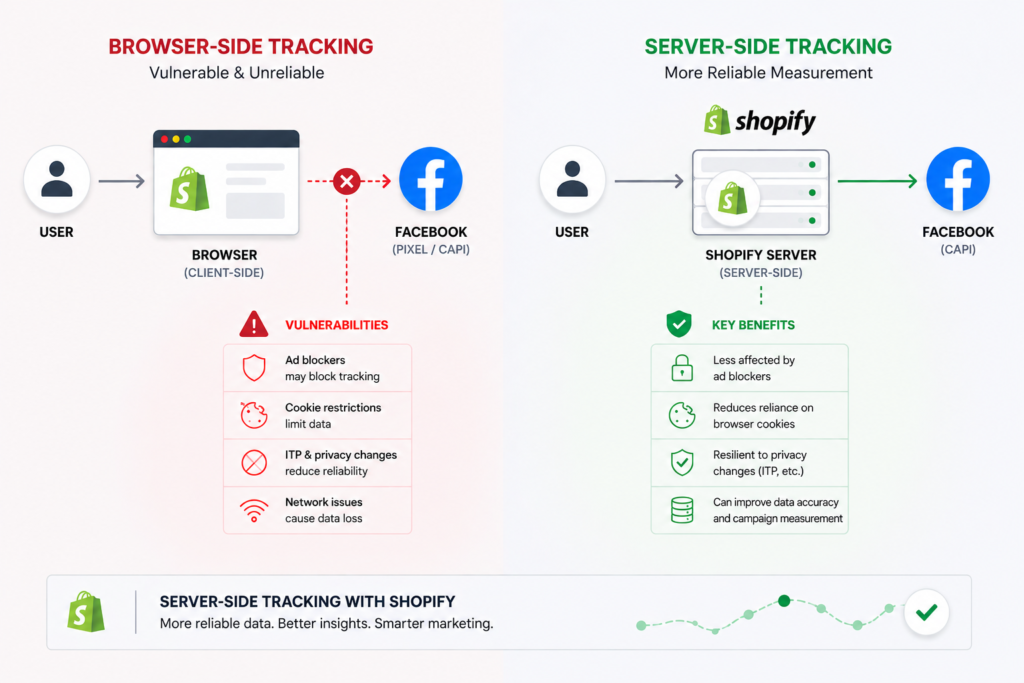
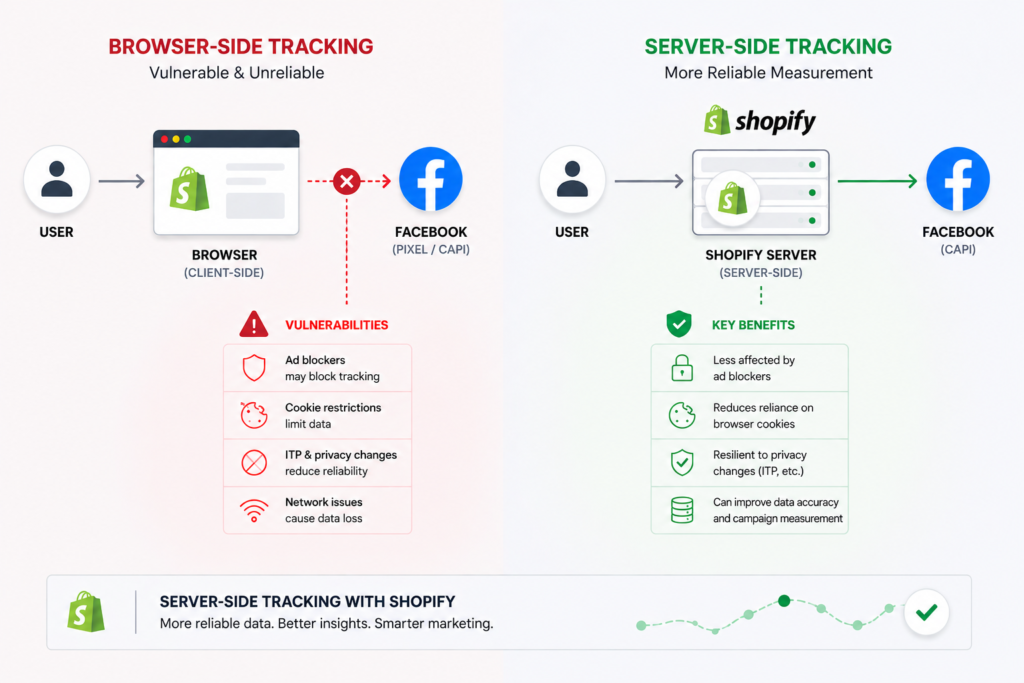
Browser-side tracking (e.g., Facebook Pixel) depends on JavaScript running in the user’s browser and is susceptible to:
- Ad-blockers and privacy extensions
- Cookie restrictions (ITP)
- Connectivity or page errors
- Data loss when users leave the site
Server-side tracking (e.g., Facebook CAPI) sends events directly from your server or Shopify’s to Facebook. Advantages include:
- Not blocked by browsers or extensions
- More reliable first-party data
- Higher data quality and match rates
- Can better align with privacy controls and enable event deduplication
How Server-Side Tracking Improves Data and Campaigns
Server-side CAPI can help recover conversion data that browser-only tracking may miss. By supplementing browser-based tracking with server-side events, businesses can improve reporting accuracy, strengthen attribution, and provide advertising platforms with more consistent conversion signals.
More reliable tracking supports better campaign optimisation, audience building, and marketing decisions. While server-side tracking can significantly improve data quality, it does not recover every lost conversion because privacy choices, consent requirements, and browser restrictions still affect the data available.
Comparing Tracking Methods
| Tracking Method | Data Capture Rate | Vulnerable to Browsers/Extensions | Requires Customer Consent | Privacy Flexibility | Manual Maintenance | Attribution Accuracy |
|---|---|---|---|---|---|---|
| Browser (Pixel only) | Low-Medium | High | Yes | Lower | Low | Declining |
| Server-side (CAPI) | High | Low | Yes* | Higher | Medium | Reliable |
| Hybrid (Pixel + CAPI) | Highest | Medium | Yes* | Highest | Medium | Optimal |
- Consent requirements vary by region and setup (see compliance section).
A merchant’s ability to attribute conversions, optimise campaigns, and stay compliant now relies on using a robust server-side tracking solution.
Implementation Options for Shopify CAPI: Native, App, or Custom?
Shopify CAPI can be set up in three main ways: Shopify’s native integration, a third-party app, or a custom workflow (often via Google Tag Manager server-side). The best option depends on your technical resources, desired control, and business needs.
Shopify Native CAPI Integration
Shopify’s Facebook & Instagram sales channel offers a native CAPI connection. Features:
- No coding needed
- Automatic mapping for standard events (PageView, AddToCart, Purchase, etc.)
- Deduplication managed by Shopify
- Lower risk of data drift when updating themes or apps
Limitations:
- Limited for advanced or custom event tracking
- Data sharing settings are quite broad
- Some features may require third-party tools
Third-Party Shopify Tracking Apps
Apps like Elevar, Trackify, Omega, and Madgicx offer more flexibility and control over Shopify Facebook CAPI integration.
Strengths:
- Broader event coverage and integration with other platforms
- Enhanced event deduplication and better match rates
- Logging and troubleshooting support
- Faster rollout of new ad platform features
Limitations:
- Subscription costs can vary
- Some apps require technical know-how
- May need additional maintenance as platforms and laws change
Custom CAPI Setups (e.g., GTM Server-Side)
For complex analytics needs, custom CAPI flows (often through Google Tag Manager server-side) allow maximum control.
Benefits:
- Full flexibility on tracked events and payloads
- Multi-platform routing from a single data flow
- Custom integration with consent management and data warehouses
Trade-offs:
- Requires technical expertise
- Needs ongoing updates and monitoring
- Higher risk of issues if not carefully managed
Comparison Table
| Method | Setup Ease | Cost | Event Accuracy | Customisation | Compliance Features | Technical Overhead | Scalability |
|---|---|---|---|---|---|---|---|
| Shopify Native | High | Free | Good | Limited | Basic | Low | Good |
| Third-Party App | Medium | Moderate | Excellent | Moderate | Advanced | Medium | Excellent |
| Custom (GTM/server) | Low | High | Maximum | Maximum | Customisable | High | Unlimited |
Choose the implementation method that best matches your business goals, technical resources, and reporting requirements. For many Shopify stores, the native integration provides a solid starting point, while more complex businesses may benefit from a third-party app or a custom server-side implementation.
How to Set Up Shopify Facebook CAPI Using Native Integration
Shopify’s built-in Facebook channel makes native CAPI setup straightforward. Here’s how:
Prerequisites
- Admin access to Shopify and Facebook Business Manager
- Facebook Business Manager owns your Facebook Page, Ad Account, and Pixel
- Verified domain in Facebook Business Settings
- Updated privacy policy reflecting Facebook tracking
Setup Steps
- In Shopify admin, go to Sales Channels > Facebook & Instagram.
- Click Start setup or Settings.
- Link your Facebook Business Manager, Page, and Pixel.
- Connect your Facebook Ad Account (check you select the correct Pixel).
- Set Shopify data sharing to Maximum for full CAPI functionality.
- Confirm your domain is verified in Facebook Business Settings.
Configuring Events and Data Sharing
- Set data sharing to Maximum.
- Review which events are included (PageView, AddToCart, Purchase, etc.).
- Advanced or custom events may need third-party apps.
- Make sure customer consent aligns with relevant privacy laws.
Testing & Validation
- Perform test actions (add to cart, purchase) on your site.
- In Facebook Events Manager, check the Test Events tab for both browser and server events.
- Look for green “Received” statuses and matching event IDs (shows deduplication).
- Make sure customer data parameters are present to improve match rates.
Shopify’s native Facebook integration is suitable for many stores getting started with server-side tracking. However, if you need greater control over event mapping, advanced reporting, or custom integrations, a third-party app or bespoke implementation may be a better fit.
Setting Up Shopify Facebook CAPI via Third-Party Apps
For advanced tracking or more complex integrations, third-party apps offer additional options.
Popular Shopify CAPI Apps
| App | Key Features | Price Range | Support |
|---|---|---|---|
| Elevar | In-depth event mapping, advanced debugging | $50-$250/mo | Strong (US/EU) |
| Trackify X | Multichannel support, user-level controls | $29-$139/mo | Good (Global) |
| Omega | Fast to set up, robust privacy and documentation | $15-$29/mo | Good (APAC/EU/US) |
| Madgicx | Automated audiences, analytics | $49-$149/mo | Moderate (US/EU) |
The right app depends on your store’s size, technical requirements, and reporting needs. Compare features, pricing, and support before deciding which solution best fits your business.
Example: Elevar Step-by-Step Setup
- Install Elevar from the Shopify App Store.
- In Elevar, connect Facebook and input your Pixel/API credentials.
- Map or auto-detect standard events.
- Toggle server-side event tracking on.
- Set up deduplication (enable event IDs for browser and server).
- Adjust privacy/consent settings to fit your legal requirements.
Key App Settings for Data and Privacy
- Enable advanced matching where possible (email, phone, address)
- Set region-specific privacy banners and consent logic
- Review app event logs for browser and server event coverage
Validation and Troubleshooting
- Use app event testing and simulate purchase flows
- Check Facebook Events Manager (Test Events) for browser/server event signals
- If events are missing, review the app’s documentation and troubleshooting tools
Validate end-to-end regularly, especially after app updates or major platform changes.
Setting Up Custom Facebook CAPI for Shopify (e.g., Server-Side GTM)
Advanced or highly customised stores may benefit from a bespoke CAPI setup.
When to Use a Custom Solution
- Complex, multi-country/multi-brand tracking needs
- Standard solutions don’t fit your privacy or data workflows
- Need direct integration with data warehouses or business intelligence
- Must comply with specific regulatory requirements
Workflow Overview
At a high level, a custom implementation follows this flow:
Shopify event → Server-side GTM container → Facebook Conversions API → Event deduplication and reporting
Setup Steps
- Provision a GTM server-side container (e.g. on Google Cloud).
- Set up Shopify webhooks for events (checkout, purchase, cart updates).
- Map event properties to Facebook CAPI parameters (email, phone, purchase details, etc.).
- Apply deduplication logic (consistent event IDs for browser and server).
- Regularly audit mapping and compliance with privacy rules.
Maintaining a Custom Setup
- Set up alerts for errors or dropped events
- Audit tracking data regularly
- Secure API credentials
- Assign a dedicated resource to oversee and maintain integrations
Common Mistakes & Troubleshooting
Frequent Setup Issues
- Event duplication due to missed deduplication
- Missed events from incorrect event mapping
- No browser fallback (server-only tracking loses some browser context)
- Consent or privacy gaps (data sent without robust consent logic)
- Unmonitored changes (integrations break after platform updates)
One common issue is that changes to themes, apps, or tracking configurations can unintentionally disable features such as Advanced Matching or event deduplication. Regular testing helps identify these problems before they affect reporting and campaign performance.
Validating Events in Facebook Events Manager
- Open Events Manager, select your Pixel
- Go to Test Events and simulate key actions
- Confirm browser and server events are both received with matching IDs
- Look for green “Received” status
Troubleshooting Workflow
- Is the event correctly mapped and enabled?
- If present in app logs but not Facebook, check API connections
- If duplicate events occur, review deduplication configuration
- Verify customer consent is correctly set up for region
Maintenance Recommendations
- Schedule monthly checks of all major events
- Audit privacy and credentials quarterly
- Track updates to Shopify, Facebook, and tracking apps
Proactive monitoring helps prevent tracking disruptions before they impact results.
Data Privacy, Compliance, and Consent
Legal and Regulatory Basics
Server-side tracking does not override privacy requirements. GDPR, CCPA, and similar frameworks require transparent data processing and, often, explicit user consent.
The European Data Protection Board (EDPB) notes that sending server-side event data (especially identifiers like emails) requires proper consent and record-keeping.
This section is general information, not legal advice. Always check local requirements with your legal advisor.
Consent Essentials
- Show a clear consent banner before activation of tracking in the EU, UK, and similar regions
- Honour “decline” signals by not firing CAPI events or passing personal data
- Ensure consent platforms include server-side flows, not just browser scripts
- Record and allow review/revocation of consents
Record Keeping and Requests
- Store logs of user consent and opt-outs
- Have clear processes for data access, deletion, and corrections
- Include CAPI in your annual privacy audits
Security Best Practices
- Limit internal access to CAPI data
- Secure and rotate API credentials regularly
- Keep privacy policy current and mention CAPI
A privacy-first approach reduces compliance risk and supports customer trust.
Ongoing Maintenance: Monitoring and Auditing
Server-side tracking needs regular attention, not a set-and-forget approach.
Routine Maintenance
- Weekly: Test and validate events in Facebook Events Manager
- Monthly: Review logs for anomalies
- Quarterly: Audit privacy consents and API credentials
- After major Shopify/Facebook updates: Re-validate event flows
Keeping Integrations Updated
- Monitor Shopify’s and app developers’ changelogs
- Review Facebook for Developers resources
- Schedule quarterly updates and document any changes made
Auditing Tracking Data
- Compare Shopify and Facebook conversion tallies often
- Ensure deduplication works as expected
- Use available maintenance checklists for comprehensive audits
Monitoring ensures reliable data and fewer tracking surprises.
FAQs and Next Steps
Can I use Facebook Pixel and CAPI together?
Yes, combining browser pixel and server-side CAPI provides broader coverage and helps improve data accuracy via Facebook’s deduplication.
Is server-side tracking enough to recover all attribution loss?
Server-side tracking can recover conversion data that browser-only tracking may miss, but it cannot recover every lost conversion. Privacy settings, consent choices, and browser restrictions still affect attribution. Combining server-side tracking with a broader first-party data strategy provides the most reliable results.
Are there reliable apps for Facebook CAPI on Shopify?
Yes. Elevar, Trackify, Omega, and Madgicx are popular options, each with different features. Choose based on your specific needs.
How can I validate CAPI is working?
Run a test purchase or trigger a test event, then review Meta Events Manager to confirm that both browser and server events are received. Check that event deduplication is working correctly and review any diagnostics or warnings that may indicate configuration issues.
What’s best for small stores?
Start with Shopify’s native Facebook integration for simplicity and lower cost. Move to an app or custom approach only if you need extra event tracking or data features.
Conclusion
Shopify server-side tracking has become an important part of maintaining more accurate and privacy-conscious marketing data. Whether you choose Shopify’s native integration, a third-party app, or a custom implementation depends on your store’s technical requirements, reporting needs, and growth plans. Whatever approach you take, ongoing testing and regular monitoring are essential to keep your tracking accurate as platforms and privacy requirements continue to evolve.
- Choose the integration approach that fits your technical and data needs
- Use a reliable setup checklist
- Validate events within Facebook Events Manager
- Schedule regular audits of tracking and data privacy
Need help implementing Shopify server-side tracking? Whether you’re setting up Facebook Conversions API for the first time or want to audit an existing implementation, get in touch through our contact page to discuss how we can help.
How do I set up Shopify server-side tracking with Facebook CAPI?
Shopify server-side tracking with Facebook CAPI can be set up using Shopify’s native integration, a third-party app, or a custom workflow. The native method is fastest for standard needs, while apps and custom solutions offer more control and features for advanced tracking requirements.
What are the benefits of server-side tracking for Shopify?
Server-side tracking for Shopify provides more reliable and accurate data by bypassing browser limitations like ad blockers and cookie restrictions. This leads to improved attribution, campaign optimisation, and better compliance with privacy requirements. It also supports higher data quality and retargeting.
Which Shopify CAPI apps are popular and why?
Popular Shopify CAPI apps include Elevar, Trackify, Omega, and Madgicx. These apps offer advanced event mapping, enhanced debugging, privacy tools, and support for broader integrations compared to the native solution. Choice depends on features, pricing, and regional support preferences.
How can I confirm Shopify server-side tracking works?
To confirm, perform test actions like purchases on your site. Check Facebook Events Manager’s Test Events tab to ensure both browser and server events appear, event IDs match, and statuses are green. Regularly validate events especially after updates to maintain accurate tracking.
Is consent needed for Shopify server-side event tracking?
Yes, proper user consent is required for Shopify server-side tracking under laws such as GDPR and CCPA. Implement clear consent banners, honour opt-outs, and record consent preferences. Ensure your solution supports managing and logging consents for all tracking flows, not just browser events.