
Shopify store owners and ecommerce managers are facing a new challenge: traditional client-side tracking is no longer reliable or accurate enough for modern analytics. With increased browser restrictions, privacy updates on iOS, and widespread use of ad blockers, critical conversion events often go untracked. Google Tag Manager server-side offers Shopify stores a more accurate, privacy-conscious way to collect and route ecommerce data.
This guide outlines how to set up Google Tag Manager server-side tracking for Shopify, focusing on practical steps and real-world answers suitable even for teams without an in-house developer.
Why Upgrade to Server-Side Tagging for Shopify Ecommerce
Shopify merchants are finding it increasingly difficult to track user behaviour and conversions accurately. Google Tag Manager server-side helps improve data collection by reducing the impact of browser restrictions, privacy features, and other factors that can affect traditional client-side tracking.
How Client-Side Tracking Falls Short in Modern Ecommerce
Client-side tracking on Shopify depends on JavaScript running in the browser. This approach is now limited by:
- iOS updates that block third-party cookies in Safari and in-app browsers.
- Privacy changes in Chrome and tracking prevention features that restrict analytics cookies.
- Ad blockers that disable tracking scripts, sometimes before pages load.
- Fast checkout and payment apps (like Shop Pay and Apple Pay) that may not trigger scripts reliably during the purchase process.
These challenges can lead to missing conversion data, making it more difficult to measure campaign performance accurately and optimise marketing decisions.
Server-Side Tagging Explained
Google Tag Manager server-side works by sending tracking data from the user’s browser to your own secure server endpoint before it goes to analytics or marketing platforms. This server processes and relays the data, bypassing many browser-based limitations.
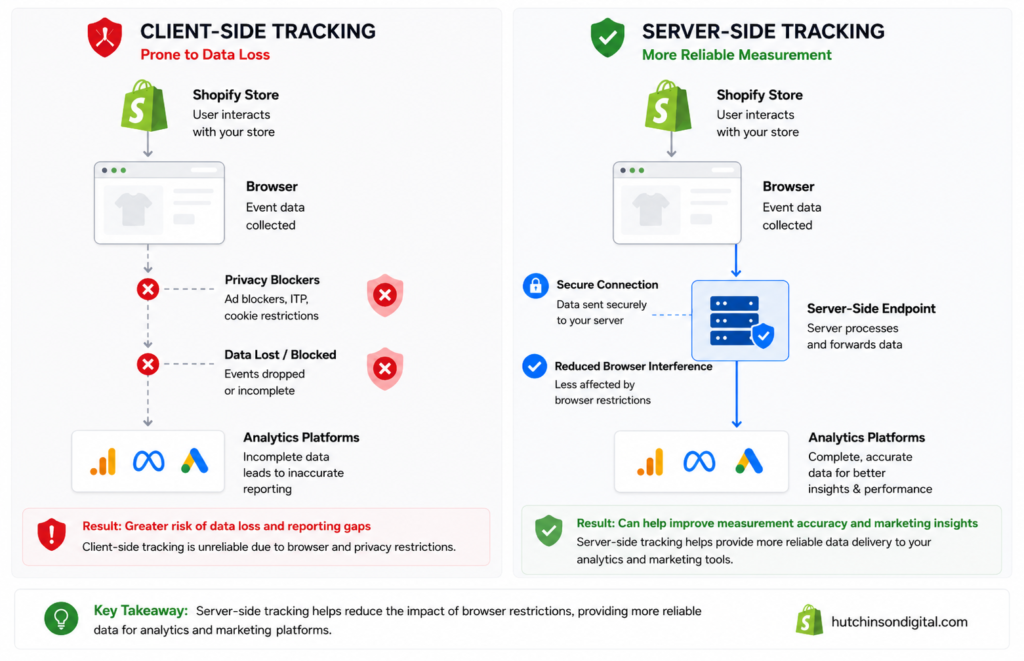
Key Benefits for Shopify Stores
- Improved Data Quality: Server-side tracking helps capture conversion events that browser-only tracking may miss.
- Potential Performance Benefits: Moving some tracking logic to the server can reduce the amount of JavaScript running in the browser.
- Enhanced Privacy and Compliance: Server-side makes it easier to manage what data is passed to third parties, supporting privacy regulations like GDPR and CCPA.
- Greater First-Party Data Control: Supports more consistent measurement by making better use of first-party data where appropriate.
- Flexibility: Event data can be updated or transformed without modifying your Shopify theme.
Comparison Table: Client-Side vs Server-Side Tagging for Shopify
| Feature | Client-Side Tagging | Server-Side Tagging |
|---|---|---|
| Tracking Accuracy | Frequently incomplete | High, resilient to blockers |
| iOS 14+ / Browser Privacy Impact | High data loss | Minimal (events reach server) |
| Ad Blocker Resistance | Vulnerable | Mostly unaffected |
| GDPR / CCPA Compliance | Harder to control | Easier to manage |
| Maintenance Load | Potential script conflicts | Centralised management |
| Page Speed Impact | Higher (scripts in browser) | Lower (logic on server) |
| Cost | Free (no infra costs) | Hosting fees (see next section) |
Server-side tagging can improve measurement accuracy, support privacy-conscious data collection, and provide greater flexibility for managing tracking across your marketing platforms. The next step is planning an implementation that matches your store’s technical requirements and business goals.
Planning Your Server-Side GTM Implementation for Shopify
Server-side GTM requires a little more planning than traditional browser-based tracking, but taking the time to prepare your environment helps avoid common implementation issues later.
Required Permissions, Tools, and Shopify Plan Compatibility
- Shopify Admin Access: Needed to edit themes and access checkout settings.
- Google Tag Manager Account: Create a dedicated server container alongside your existing web container.
- Shopify Plan: Usable on most paid plans. More advanced tracking (especially at checkout) may require Shopify Plus.
- Hosting for Server Container: Required via Google Cloud, AWS, or third-party managed service.
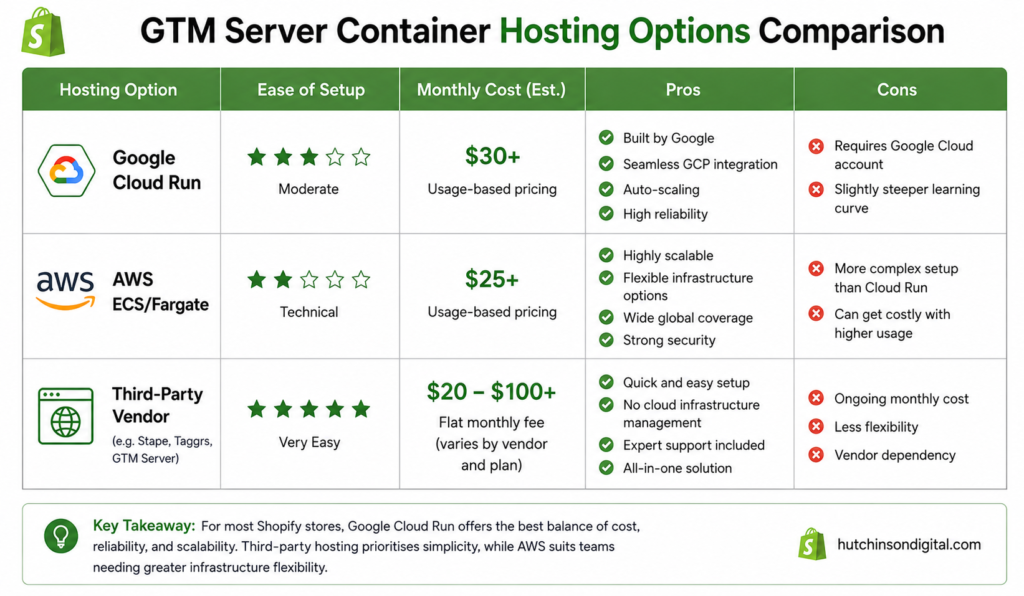
GTM Server Container Hosting Options
You need to host your GTM server container somewhere reliable. Options include:
| Hosting Option | Ease of Setup | Monthly Cost | Pros | Cons |
|---|---|---|---|---|
| Google Cloud Run | Moderate | $30+ | Scalable, Google support | Ongoing Cloud setup required |
| AWS ECS/Fargate | Technical | $25+ | Flexible | More complex setup |
| Third-Party Vendor | Easiest | $20-$100+ | No code, vendor support | Extra cost, vendor lock-in |
Cost Breakdown and Scalability
- Cloud Hosting: Budget $20-$50/month for moderate traffic; costs may spike with high order volume.
- Third-Party Providers: Fixed fees, often based on event volume or features.
- Redundancy: Stores with high volumes or strict compliance needs should consider uptime monitoring or managed hosting.
Choose a provider that can scale as your store grows.
Key Implementation Decisions
- CNAME Mapping: Configure your tracking subdomain (for example,
track.yourstore.com) to point to your GTM server container. This helps create a first-party endpoint and can improve measurement reliability. - Consent Management: Integrate your cookie consent mechanism so only consented events are tracked.
- Maintenance Ownership: Assign someone to oversee updates and compliance checks.
Careful decisions at this stage reduce future headaches. Next, here’s how to implement your setup for Shopify.
Step-by-Step Shopify Server-Side GTM Setup Guide
A clear process ensures reliable tracking. Here are the main steps for Shopify server-side GTM implementation.
Provision and Configure Your GTM Server Container
- Create a Server-Side GTM Container:
- In Tag Manager, create a new “Server” container.
- Deploy on Hosting Platform:
- Use Google/AWS guides or a third-party provider.
- Note your assigned server endpoint (e.g. gtm.yourstore.com)
- Configure CNAME Mapping:
- Update DNS to use your own subdomain (e.g. track.yourstore.com).
- Test the Endpoint:
- Visit your subdomain to confirm the GTM server banner appears.
Connecting Shopify to Your Server Container
- Insert Web Container Snippet:
- Add GTM web container code to your Shopify theme’s “ and, if needed, “.
- Adjust Tag Endpoints:
- Update GA4 and pixel tags to use your server URL (with CNAME).
Setting Up Data Layer and Event Tracking in Shopify
- Data Layer Pushes:
- Add code snippets to theme.liquid and checkout.liquid as needed.
- Example: Send order info on the checkout page.
- Recommended Events:
- Pageview
- Add to Cart
- Begin Checkout
- Purchase
- Custom: refunds, discounts, etc.
Configuring GA4, Facebook Conversion API, and Other Pixels in GTM Server-Side
- GA4 Setup:
- Add a GA4 tag in your server container using your measurement ID.
- Route Shopify events via the server, not directly to Google.
- Facebook Conversion API:
- Use the GTM server-side Facebook tag template.
- Enter your Facebook access token and Pixel ID.
- Other Destinations:
- Connect email or ad platforms using relevant API setups, routed from your server container.
Testing and Validating Server-Side Tracking
- Tag Assistant/Preview Mode: Use GTM’s preview to check events and tags.
- Google Analytics Real-Time: Confirm events (purchase, add to cart, etc) register correctly.
- Facebook Events Manager: Check for correctly received server events.
If tracking fails, follow troubleshooting in the next section.
Server-Side GTM for Shopify: Benefits & Limitations
Server-side GTM significantly improves Shopify data quality, but there are limits and caveats.
Tracking Enhancement Table
| Metric | Client-Side Only | Server-Side Deployed |
|---|---|---|
| Purchases Attributed | Often incomplete | Much higher |
| Add to Cart Events | Missed frequently | More complete |
| Device/Browser Coverage | Inconsistent | Consistent |
| Facebook Pixel Match Rate | Lower | Higher |
| GDPR/CCPA Compliance Flag | Needs scrutiny | Easier to evidence |
Server-side tracking can help reduce gaps in conversion measurement, particularly where browser restrictions or privacy features affect traditional client-side tracking.
Privacy & Consent Advantages
Server-side GTM enables you to control which data is forwarded to third parties and supports better privacy compliance. When implemented correctly, only consented data should be forwarded, IP addresses can be anonymised where appropriate, and server logs can support auditing and compliance processes.
For Shopify Plus users, tighter synchronisation between consent banners and event tracking is possible, helping to align with regulatory guidance.
_This is general information, not legal advice. For authoritative regulatory details, reference official privacy sources._
Remaining Limitations & Compliance Notes
- Some checkout events cannot be tracked on basic Shopify plans due to script placement limits.
- Purchases via third-party processors may not always trigger post-purchase events.
- Retaining server logs requires appropriate security, retention policies, and compliance with applicable privacy regulations.
- Server-side tracking does not exempt you from compliance obligations; integrate with your consent management solution as required.
Troubleshooting Your Server-Side GTM Shopify Implementation
Even well-planned implementations can run into issues during setup. Use the following checklist to identify and resolve the most common problems.
Common Issues and Solutions
- Events Missing in Analytics: Ensure data layer snippets are added to the correct themes and tag endpoints use your server URL.
- Latency or Event Drops: Review your hosting resources, monitor server performance, and check for traffic spikes or configuration issues that may delay event processing.
- Consent Errors: Use various browsers and test consent settings for accuracy.
Troubleshooting Flowchart
Post-Implementation QA Checklist
- Confirm core events (purchase, add to cart, begin checkout) trigger in GTM Preview.
- Validate events in Google Analytics and Facebook.
- Review server logs for rejected or malformed data.
- Test both with and without consent to confirm proper gating.
- Place test orders using distinct criteria for full attribution traceability.
Most implementation issues can be resolved by systematically checking your configuration, DNS settings, and event flow before making further changes.
Advanced Tips & Futureproofing: Server-Side GTM for Shopify
Once your server-side implementation is stable, you can extend it with additional automation, integrations, and ongoing optimisation to support future business growth.
Automate and Scale Custom Events
- Push additional custom events such as post-purchase surveys or customer LTV updates.
- Route events to other platforms (e.g., affiliate, CRMs) via APIs from your server container.
- If managing multiple stores or domains, enable cross-domain tracking for unified analytics.
Consent and Compliance Management
Align Shopify’s cookie consent banner with server-side GTM for ongoing compliance. Use triggers and variables that honour user choices.
- Reference: Google Consent Mode Docs
- Reference: Shopify Cookie Banner Guide
Ongoing Maintenance
- Schedule periodic audits to remove deprecated tags or update schemas.
- Monitor Shopify theme changes that could affect data layer snippets.
- Review hosting usage for unexpected traffic or performance changes.
Proper maintenance preserves data advantages and supports regulatory expectations.
Further Resources & Expert Support
A successful server-side implementation depends on careful planning, accurate testing, and ongoing maintenance. If your setup is more complex or you’re experiencing tracking issues, working with an experienced Shopify tracking specialist can help you implement and validate your configuration more efficiently.
Found this guide helpful? Explore our related Shopify and ecommerce tracking articles to learn more about improving your marketing measurement and website performance.